¶ Wired network | PEAP authorization (login and password)
¶ Group Policy Object
GPO (abbbreviated from above) - is a tool for Windows system administrators that allows centralized management of operating system configuration and running applications on multiple computers at the same time. In other words, the GPO allows you to define rules regarding the range of computers' and their users' ability. The configuration of these rules takes place on the server and then, using a special filtering mechanism, it is sent to the selected computers.
GPO is an essential element of the Active Directory and, with it together, gives the greatest possibilities. You can learn how to configure Active Directory in the NACVIEW system on our website: www.nacview.com/pl (Download > Instructions > Active Directory).
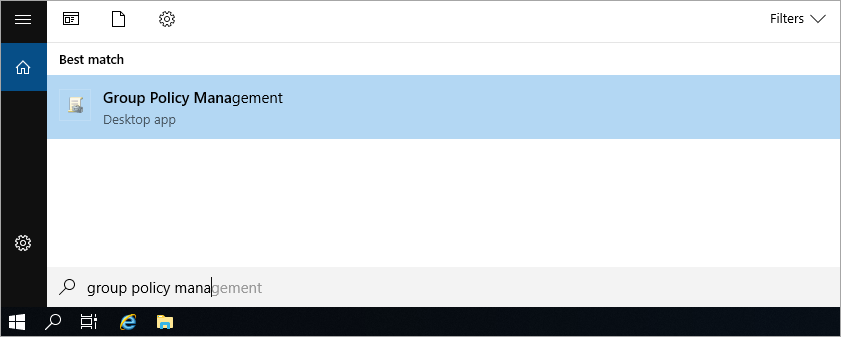
1. On the domain controller, search for and open Group Policy Management.
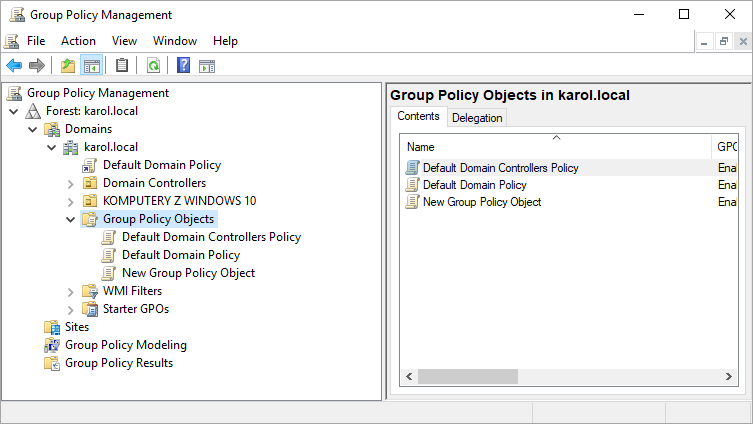
2. Go to: Group Policy Objects - to do this, in the domain structure window, expand: Forest > Domains > selected domain or organizational unit.
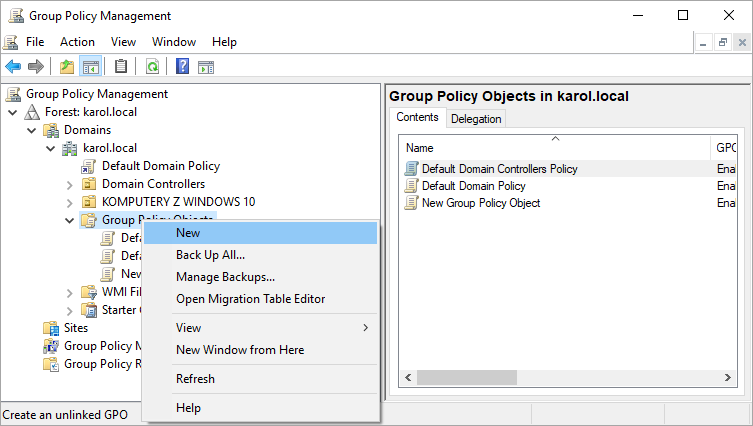
3. Right-click on the Group Policy Object and select: New.
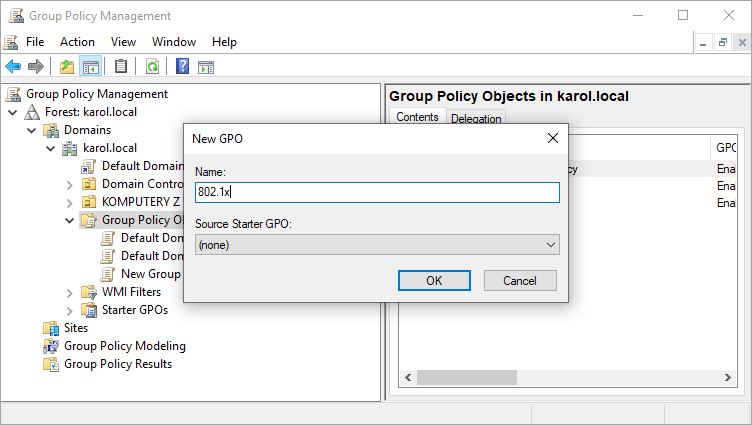
4. In the window that appears enter a name for your new GPO and confirm with OK.
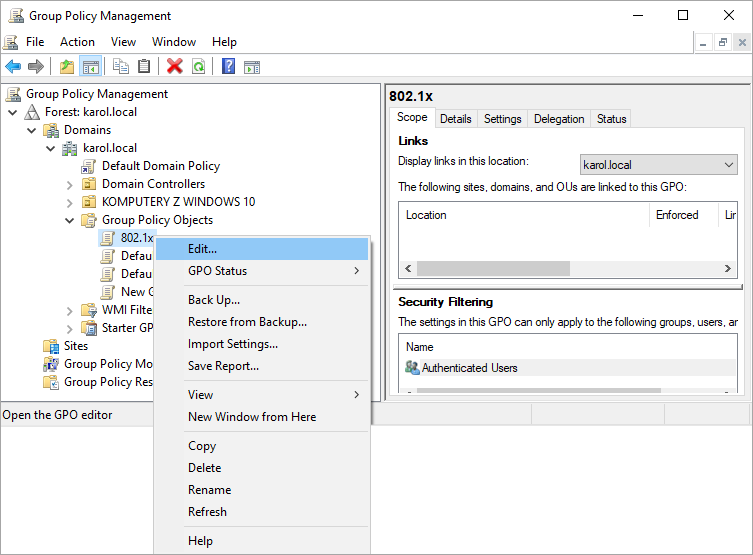
5. From the context menu, select Edit… for the new GPO.
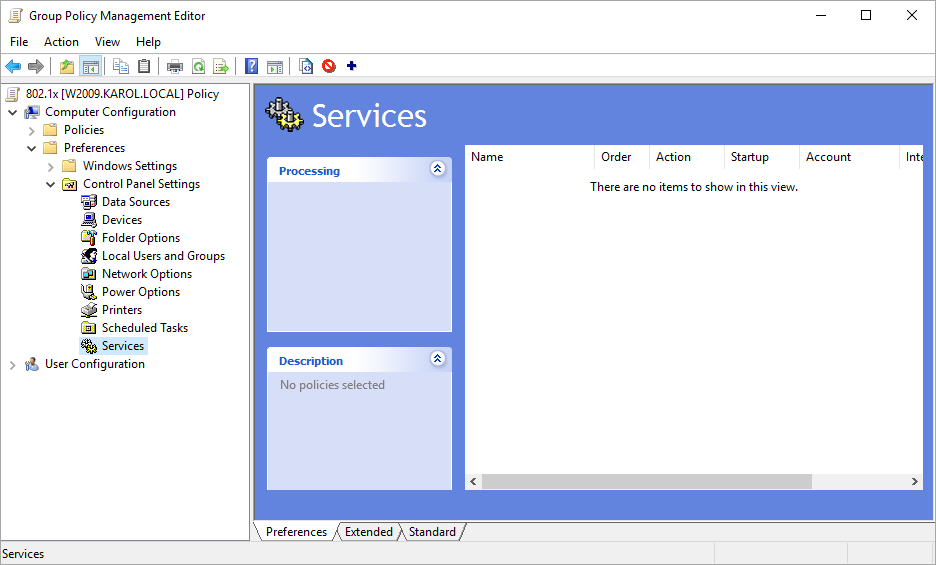
6. In the window of Group Policy Management Editor, search for: Services (Computer Configuration > Preferences > Control Panel Settings > Services).
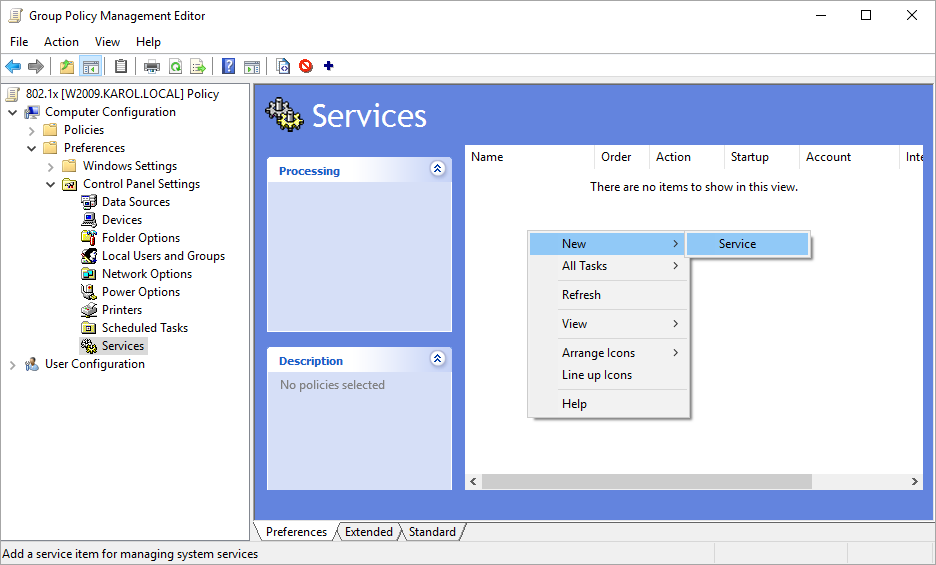
7. From the context menu, select: New and then: Service.
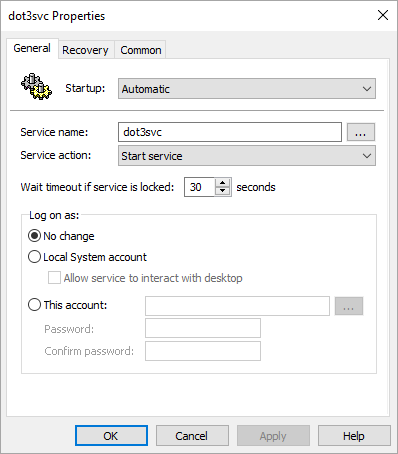
8. Set the parameters as shown on the screen below to configure the automatic launch of the supplicant service on the Windows end-user computers. Leave the Recovery and Common tabs unchanged.
9. Go now to the Security Settings (Computer Configuration > Policies > Security Settings), right-click on Wired Network (IEEE 802.3) Policies, then select: Create A New Wired Network Policy for Windows Vista and Later Releases.
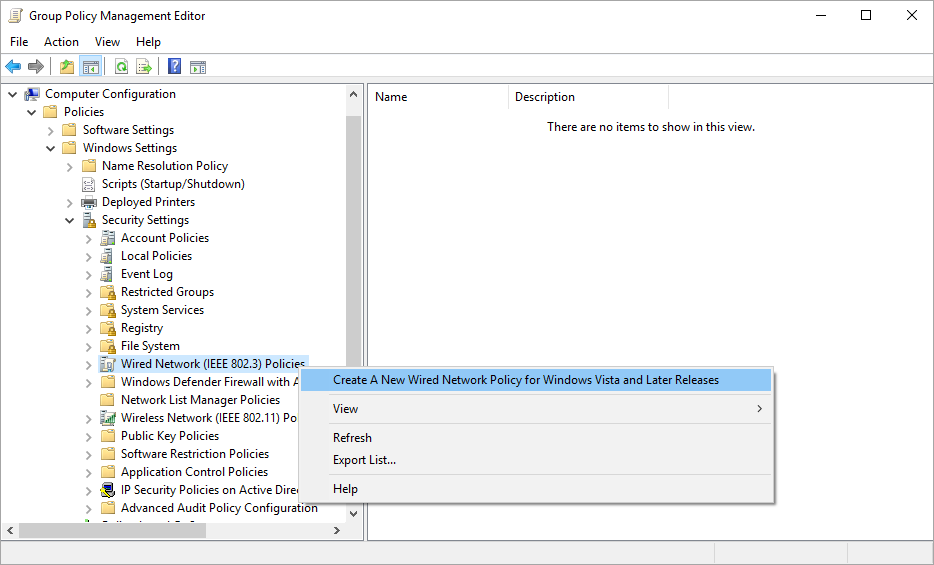
10. In the window that appears, in the General tab, give the new policy a name.
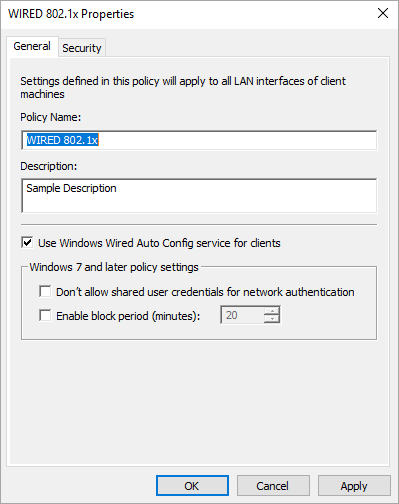
11. Go to the Security tab and set the parameters as shown on the screen below.
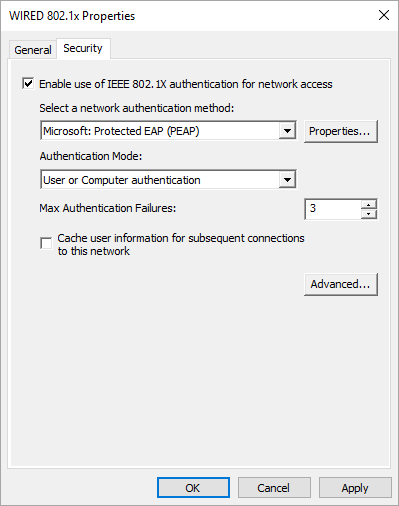
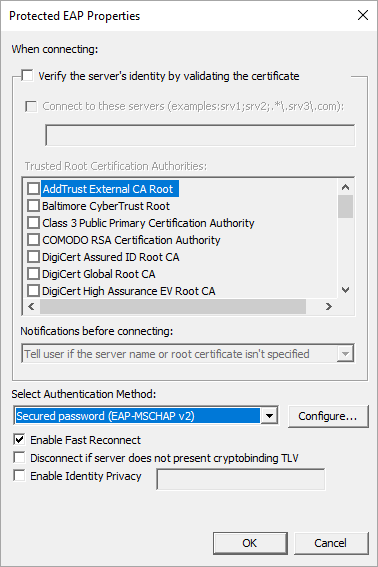
12. Press the Properties… button and set the parameters according to the following screen and click OK.
13. Click on ***Advanced…***and set the parameters as in the screen below.
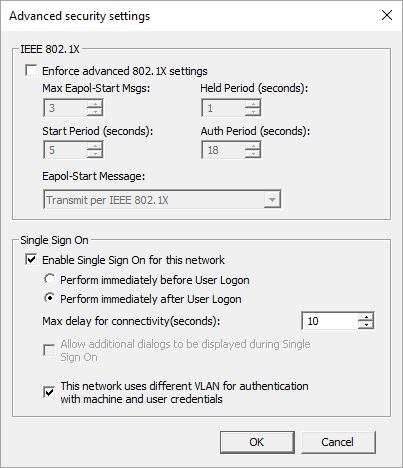
14. GPO is ready now. Close all modal windows by clicking OK.
15. Connect the new GPO to the existing group of objects (computers) to which the new settings are to be applied. To do this, right-click on your given group of objects, and then select Link an Existing GPO… Select the GPO you just configured and confirm with OK.
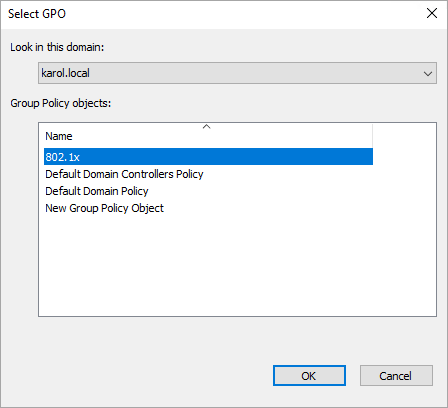
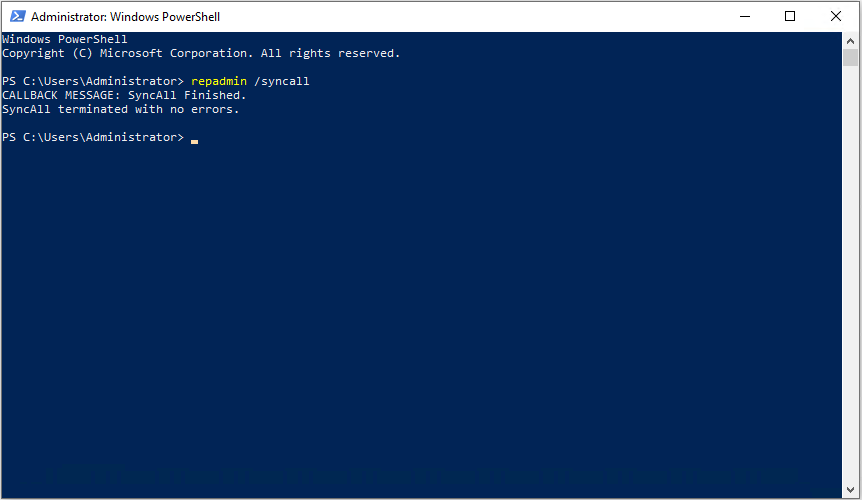
16. In order to speed up the replication of the new GPO, run (with the administrator privileges) PowerShell program on the server where you have set it up. Use the repadmin /syncall command and confirm the command. If replication is successful, you will see a message saying "SyncAll terminated with no errors".
17. Now wait for the settings to get propagated to computers in the domain. From now on, the supplicant on end devices has been configured. For any larger network, you can add more policies to allocate appropriate resources based on identity, authorization type, and/or object groups.