¶ Aruba Mobility Controler
¶ 1. WLAN configuration
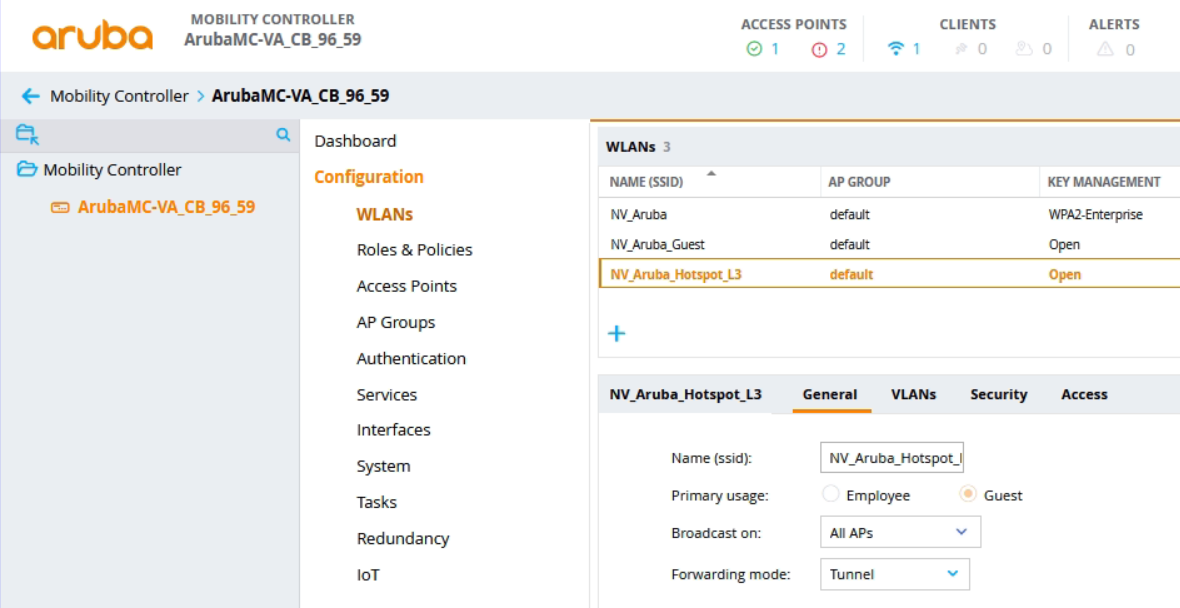
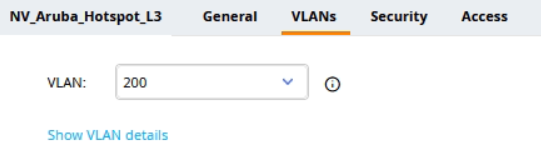
1.1 Select Configuration -> WLANs and create new SSID. Next set VLAN i VLANs tab.
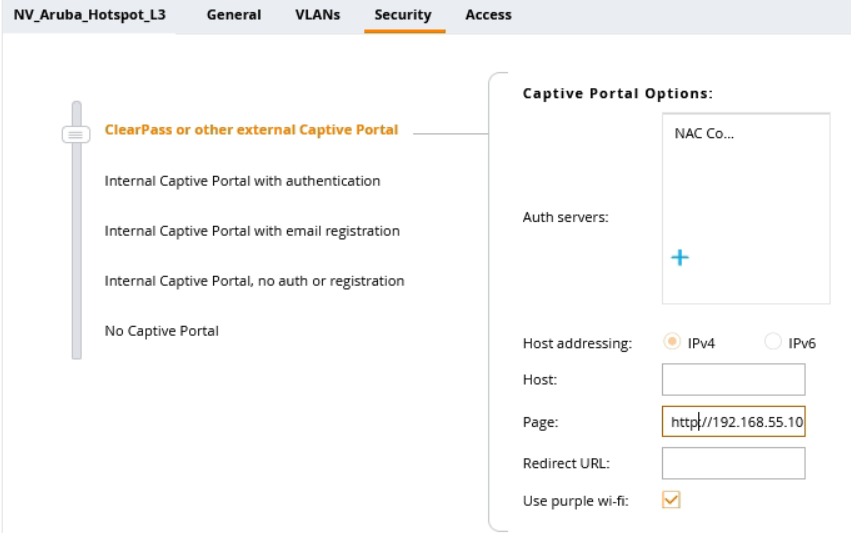
Page: http://192.168.55.100/
To configure the connection via URL name and HTTPS, a certificate from an external CA (public) must be configured to ensure proper functionality. Additionally, a reference must be entered in DNS after the domain name to return the IP of the NACVIEW server.
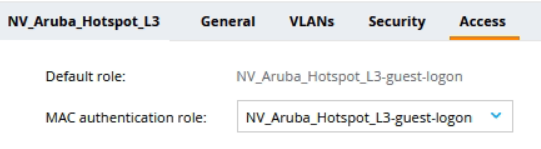
1.2 In Security tab set url in Page form. Next set MAC authetication role in Access tab.
¶ 2. Auth Servers configuration
2.1 Now select Authentication from Aruba menu and add NACVIEW Radius server connect configuration parameters in Auth Servers tab.
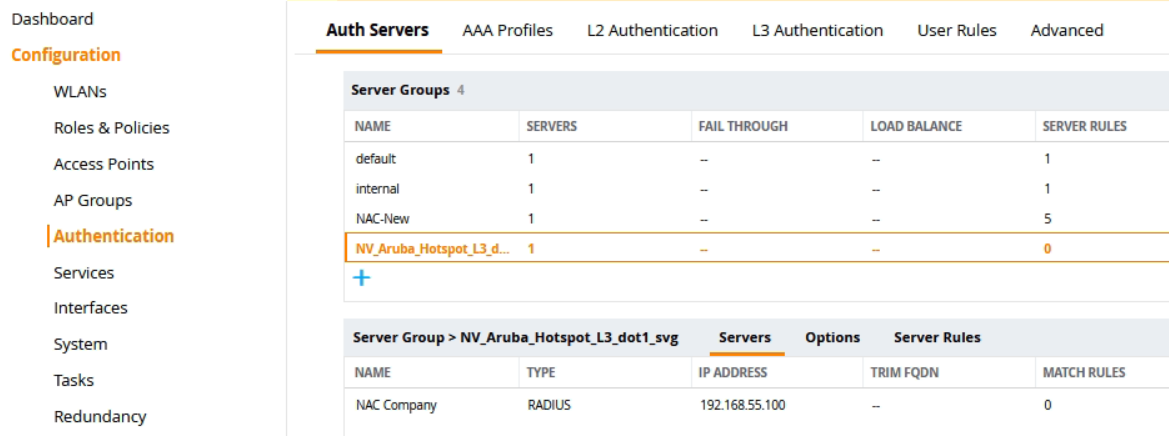
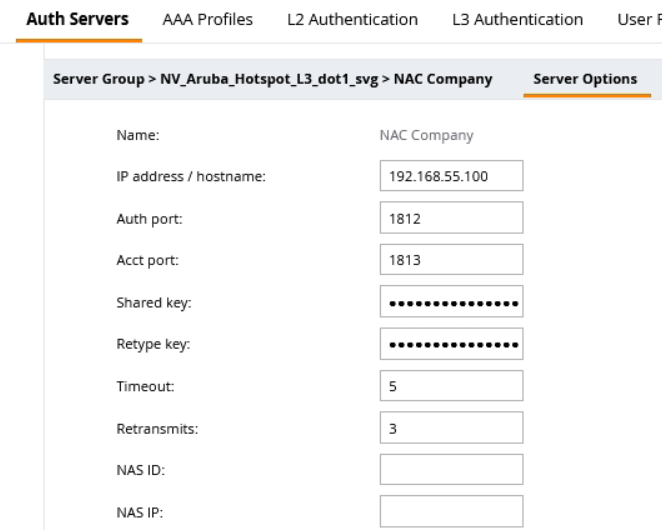
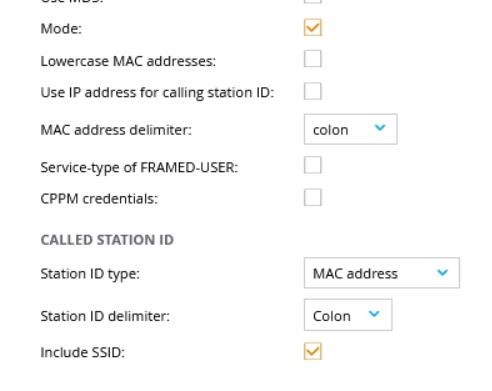
2.2 Set parameters in Server Options tab.
¶ 3. Roles & Policies
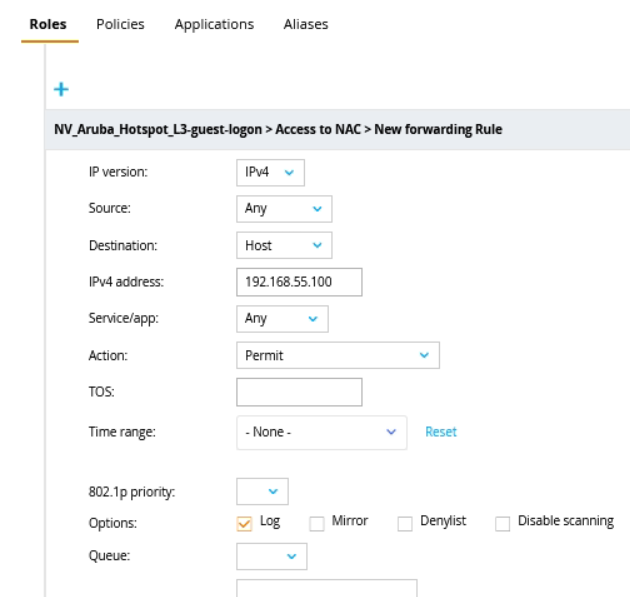
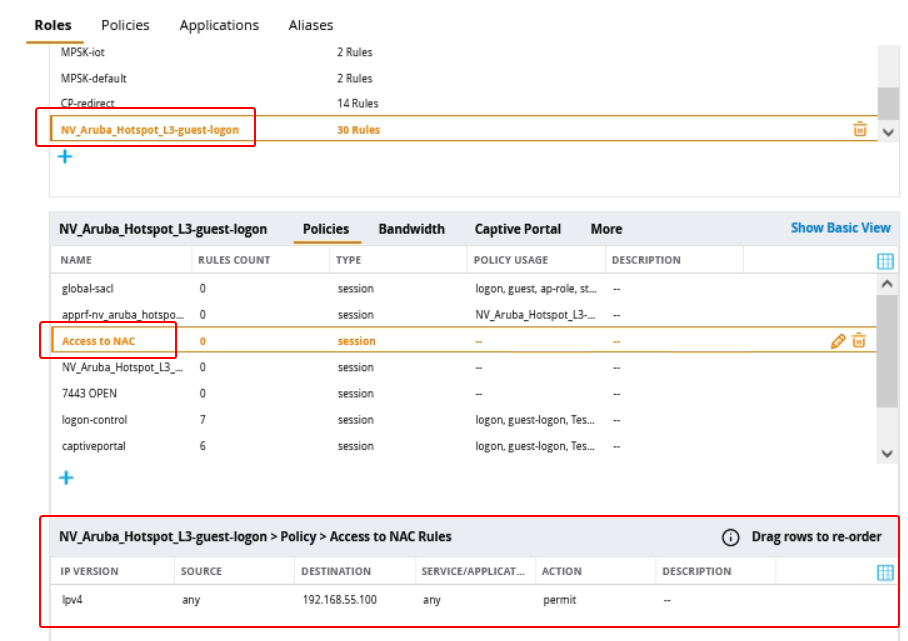
3.1 Select Roles & Policies from Aruba menu. Edit the role automatically created by the controller to allow communication with the NACVIEW server (port 7443 and/or others).

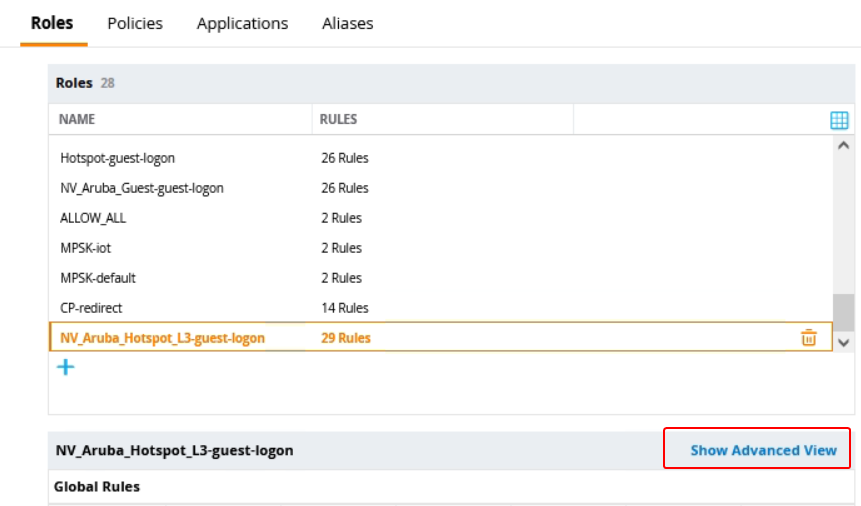
3.2 Add a policy
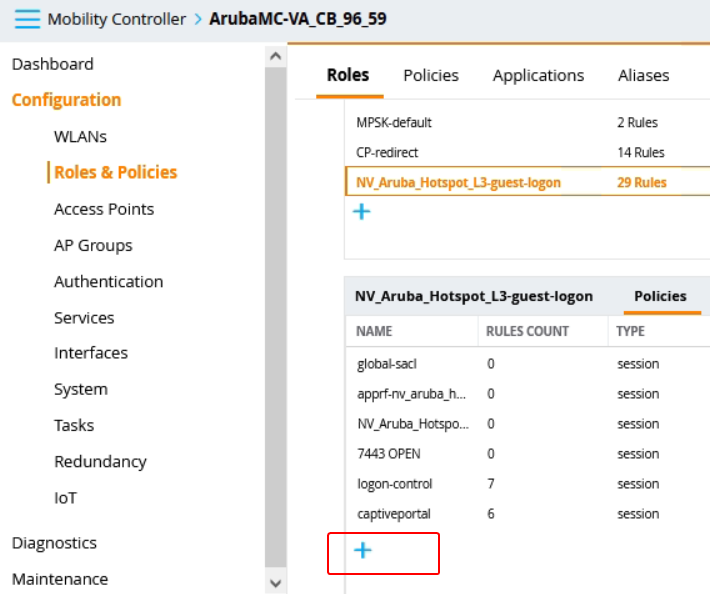
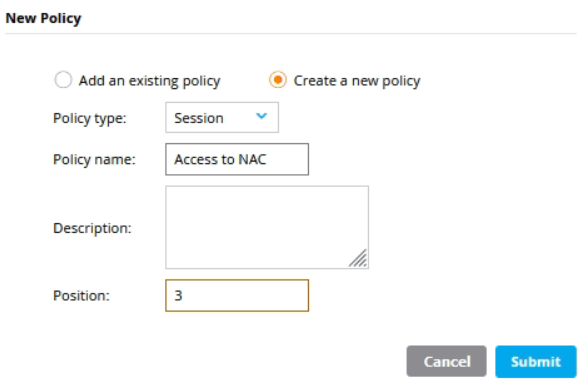
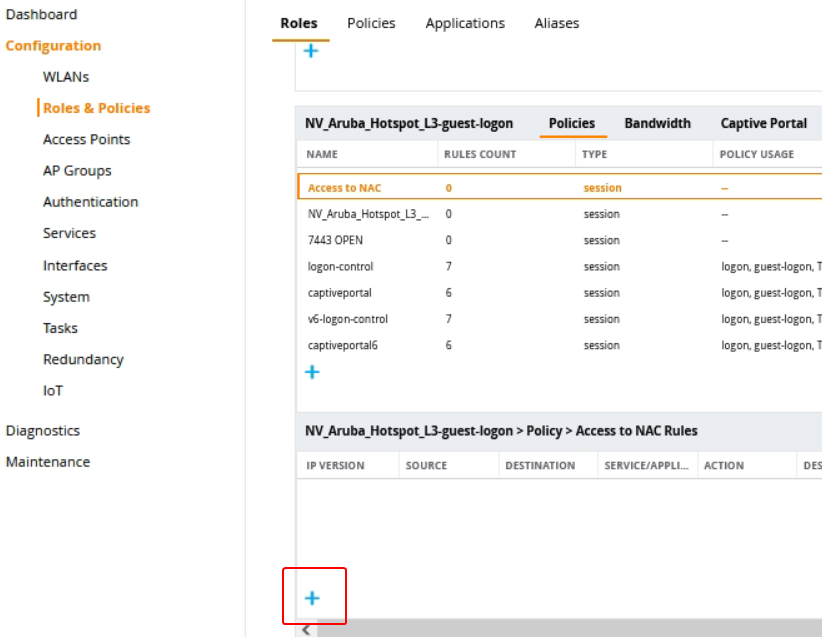
3.3 Add a rule to a policy
¶ 4. Configuration of AAA profile
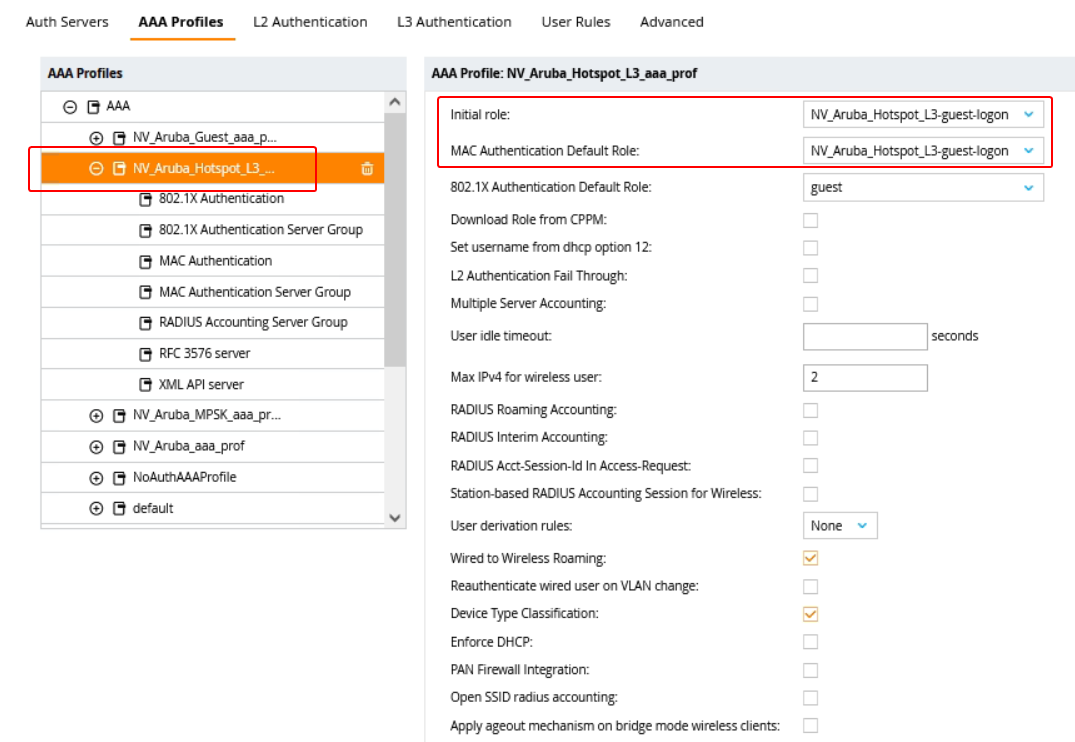
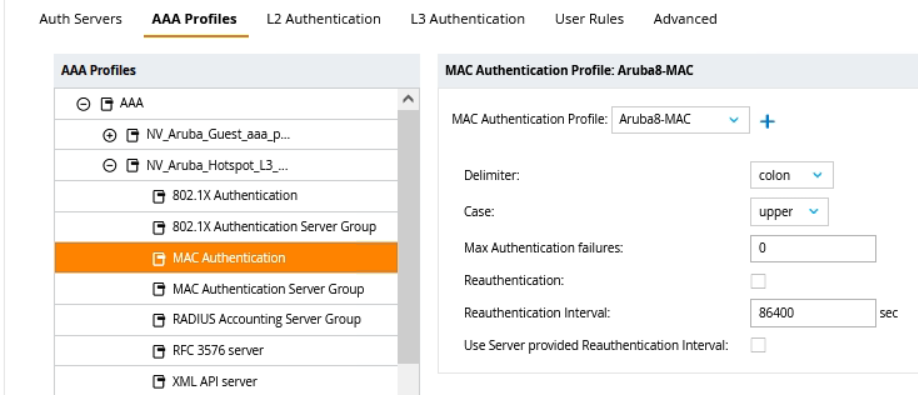
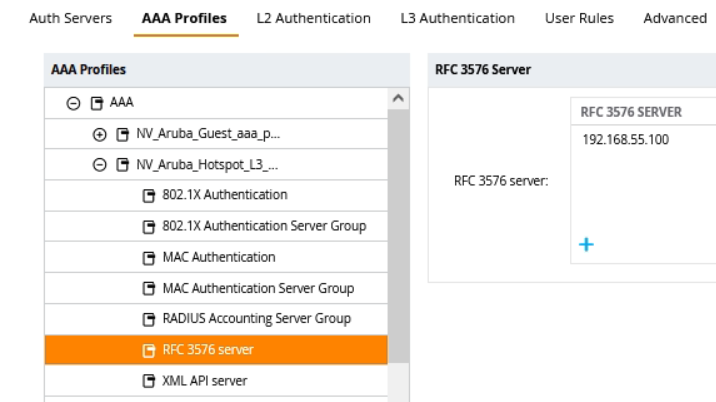
4.1 Now select again Authentication from Aruba menu and set AAA Profile like as screenshots below.


¶ 5. Configure L3 Authentication profile for Captive Portal
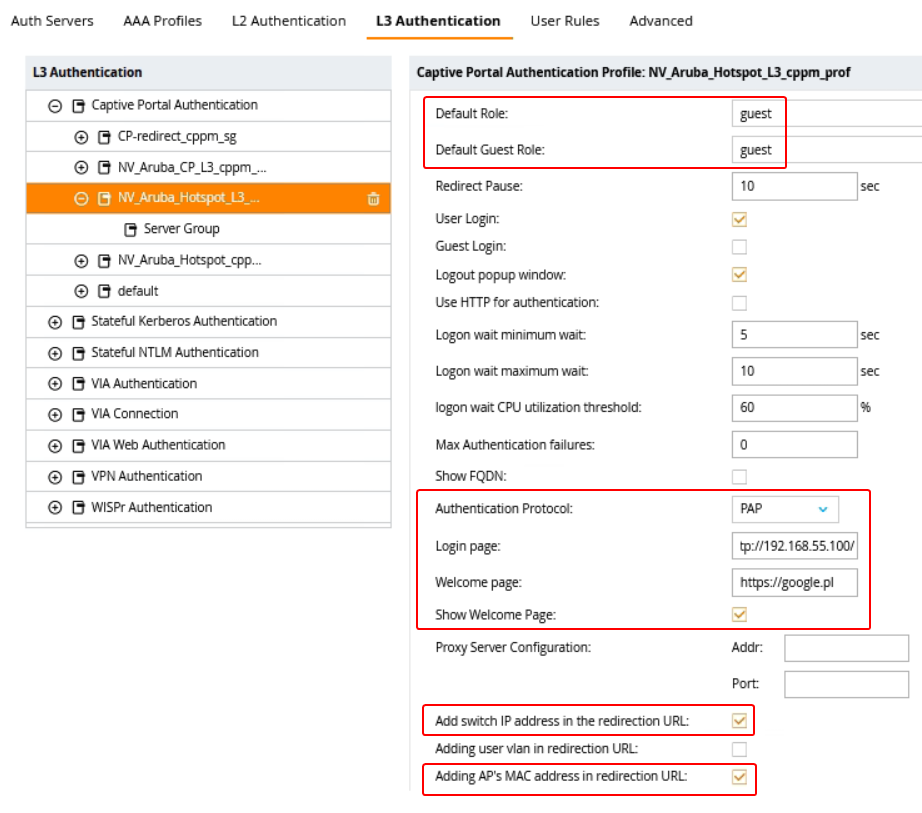
Login page: http://192.168.55.100/
To configure the connection via URL name and HTTPS, a certificate from an external CA (public) must be configured to ensure proper functionality. Additionally, a reference must be entered in DNS after the domain name to return the IP of the NACVIEW server.
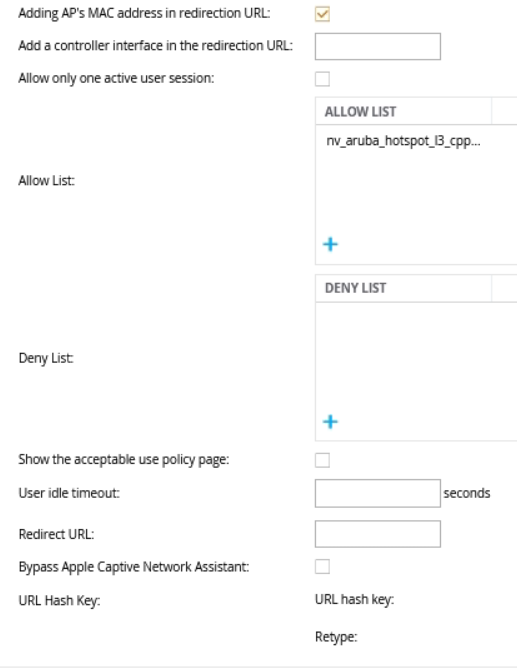
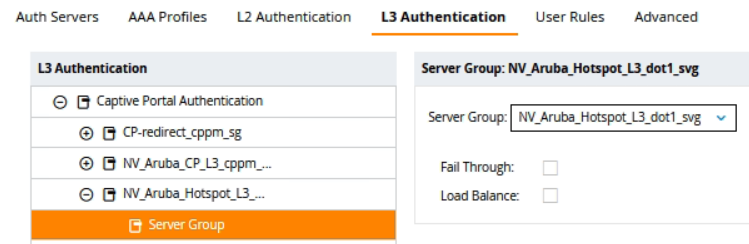
5.1 Select L3 Authentication tab and set parameters.
¶ 6. Policy configuration in NACVIEW
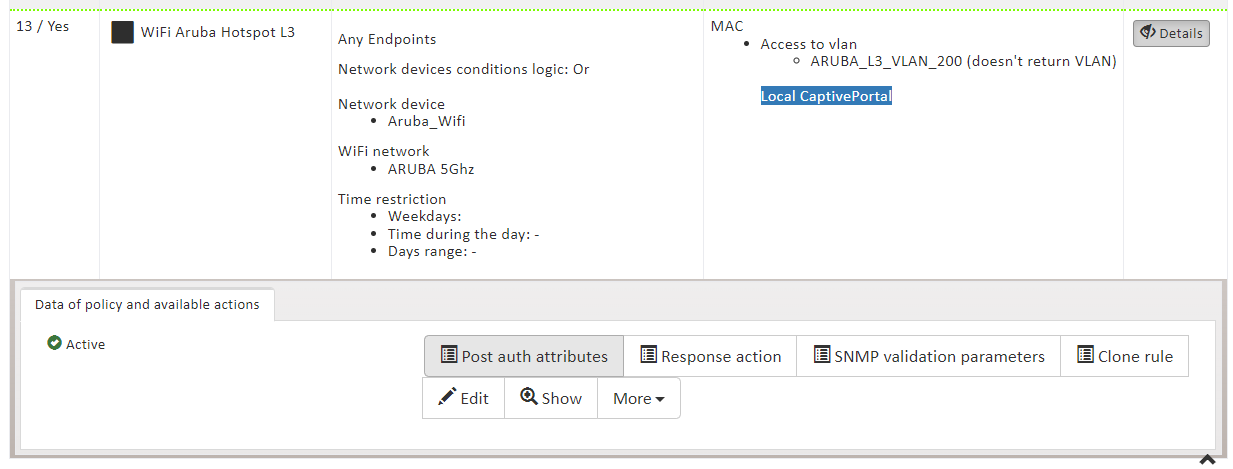
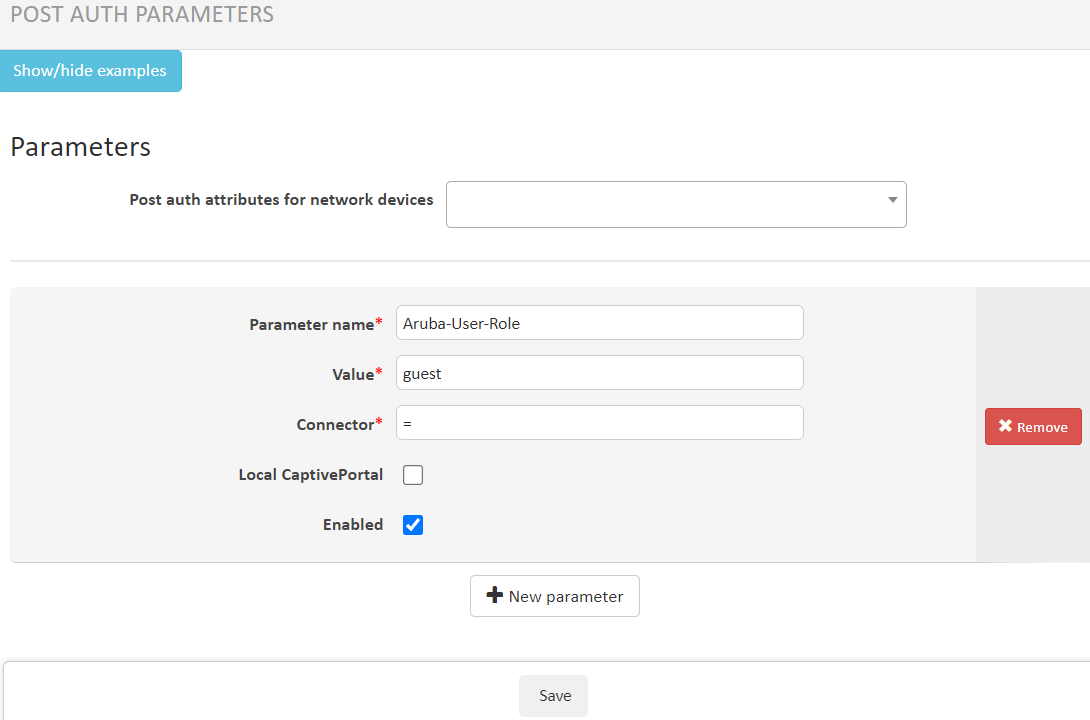
6.1 In the NACVIEW server add new Rule in Access Policies and set Post auth attributes.
¶ 7. Captive Portal
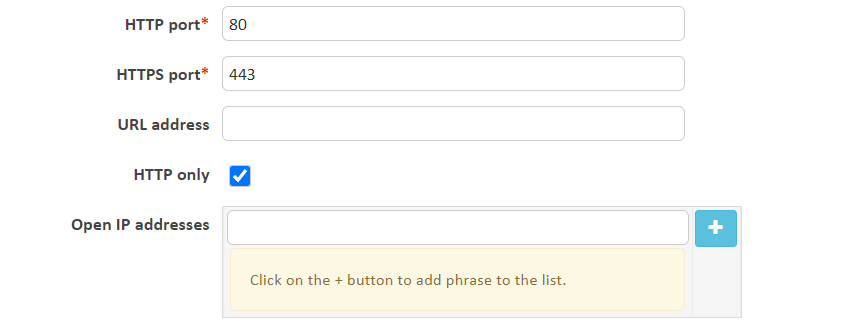
7.1 In the NACVIEW server set HTTP only in Captive Portal configuration.
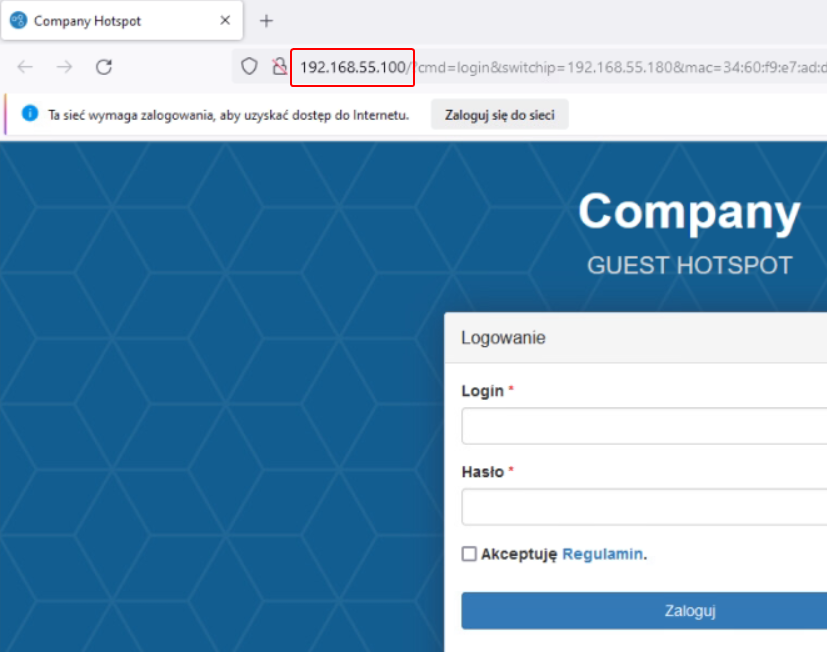
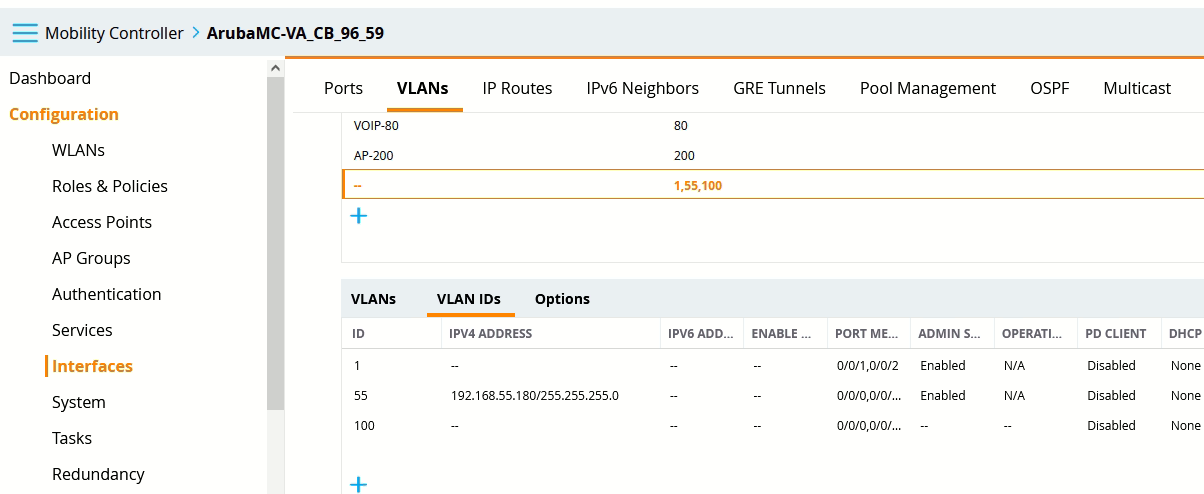
Additionally, you must assign the IP address on the controller from the VLAN designated for guests to ensure proper functionality.